overview
What Thumble does
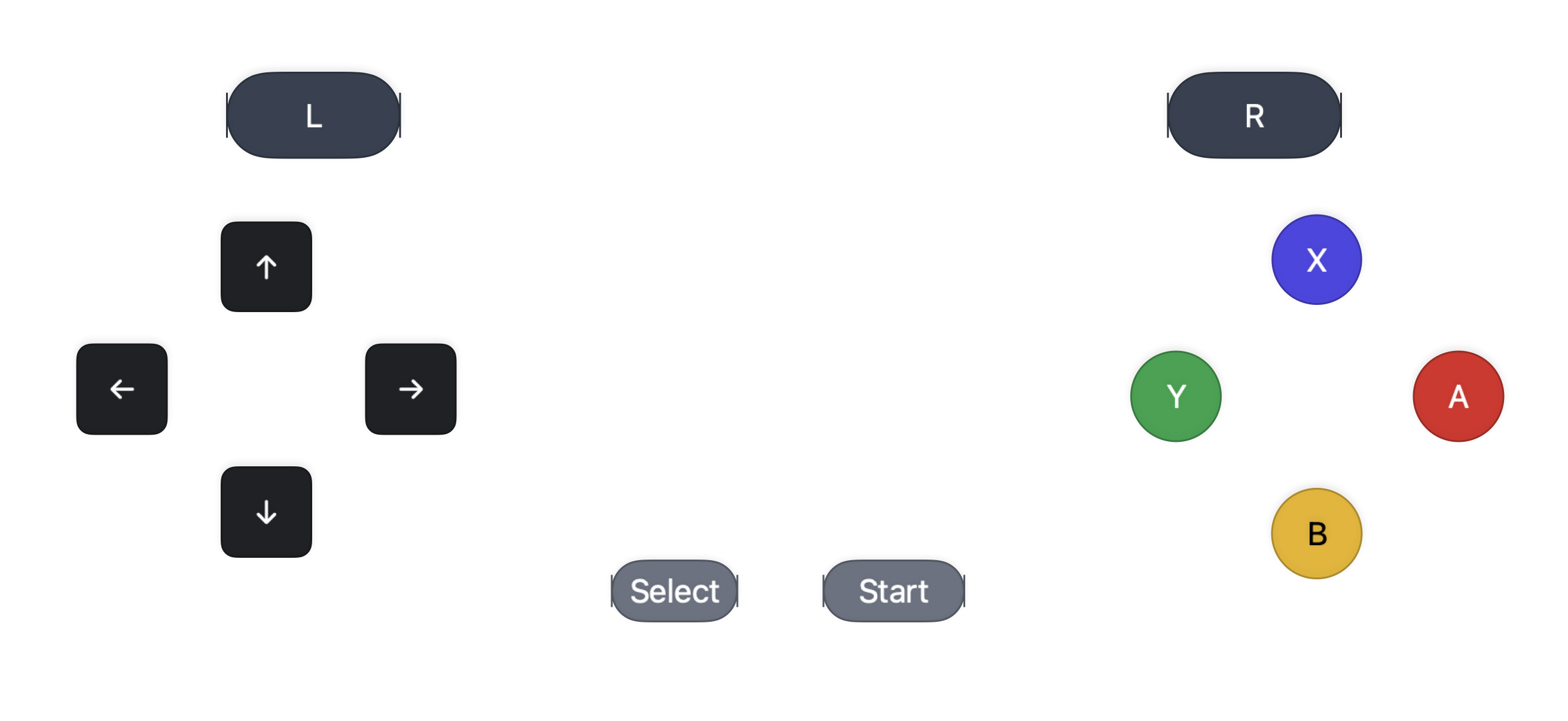
Thumble turns an iPhone into a programmable control surface for a Mac. The macOS helper hosts a local pairing server, stores keypad profiles, and sends keyboard, pointer, or virtual gamepad output to the focused app. The iOS app displays the synced keypad and sends low-latency button, joystick, trigger, and trackpad input over your local network or a nearby peer-to-peer path.
Helper + editor
Grant Accessibility, pair iPhones, manage profiles, record shortcuts, and edit each keypad visually.
Touch controller
Use synced profiles, switch setups, export keypads, toggle haptics, and make quick freeform layout edits.
Scriptable parity
Generate, import, export, select, bind, inspect, and test keypads from the terminal.
requirements
What you need
- macOS 14 or newer running Thumble Mac.
- iOS 17 or newer running Thumble on iPhone.
- Same local network or nearby peer-to-peer for Smart Connect, QR pairing, and realtime input.
- Accessibility permission on Mac so Thumble can inject keyboard and pointer events.
- Local Network permission if iOS or macOS prompts for it.
- Camera permission on iPhone only if you scan the Mac QR code.
setup
First-run setup
-
Open Thumble Mac.
The Home screen shows readiness for Accessibility, the helper server, and iPhone pairing. A first-run setup guide walks through the same steps.
-
Enable Accessibility.
Click Request Accessibility Permission or Open Accessibility Settings, then enable Thumble Mac in System Settings → Privacy & Security → Accessibility.
-
Open Thumble on iPhone.
The iOS onboarding explains Local Network and Camera prompts. Tap Smart Connect, or use Scan Mac QR Code if this is the first pairing. For airplane/offline use, keep Wi‑Fi and Bluetooth enabled after enabling Airplane Mode so peer-to-peer discovery can run.
-
Pair securely.
Scan the QR code on the Mac, or manually enter a displayed
ws://<mac-ip>:<port>address. If prompted, type the six-digit code shown on Thumble Mac. -
Focus the target Mac app.
After pairing, Thumble controls whichever Mac app is currently focused. Use Release All if a key ever feels stuck.
mac app
Home, Keypad, and Settings
The Mac app is the source of truth for saved keypads and bindings. It runs the server, displays QR and manual pairing information, previews the active keypad, and exposes diagnostics.
Home
Use Home to check readiness, copy the pairing code, scan QR from the iPhone, switch profiles, make a setup the default, and perform quick local shortcut tests.
Keypad
Use Keypad to visually edit layouts, manage profiles, record shortcuts, configure output mode, and sync changes to the connected iPhone.
Settings
Use Settings for appearance defaults, input diagnostics, local addresses, server restart/stop, and advanced connection troubleshooting.
ios app
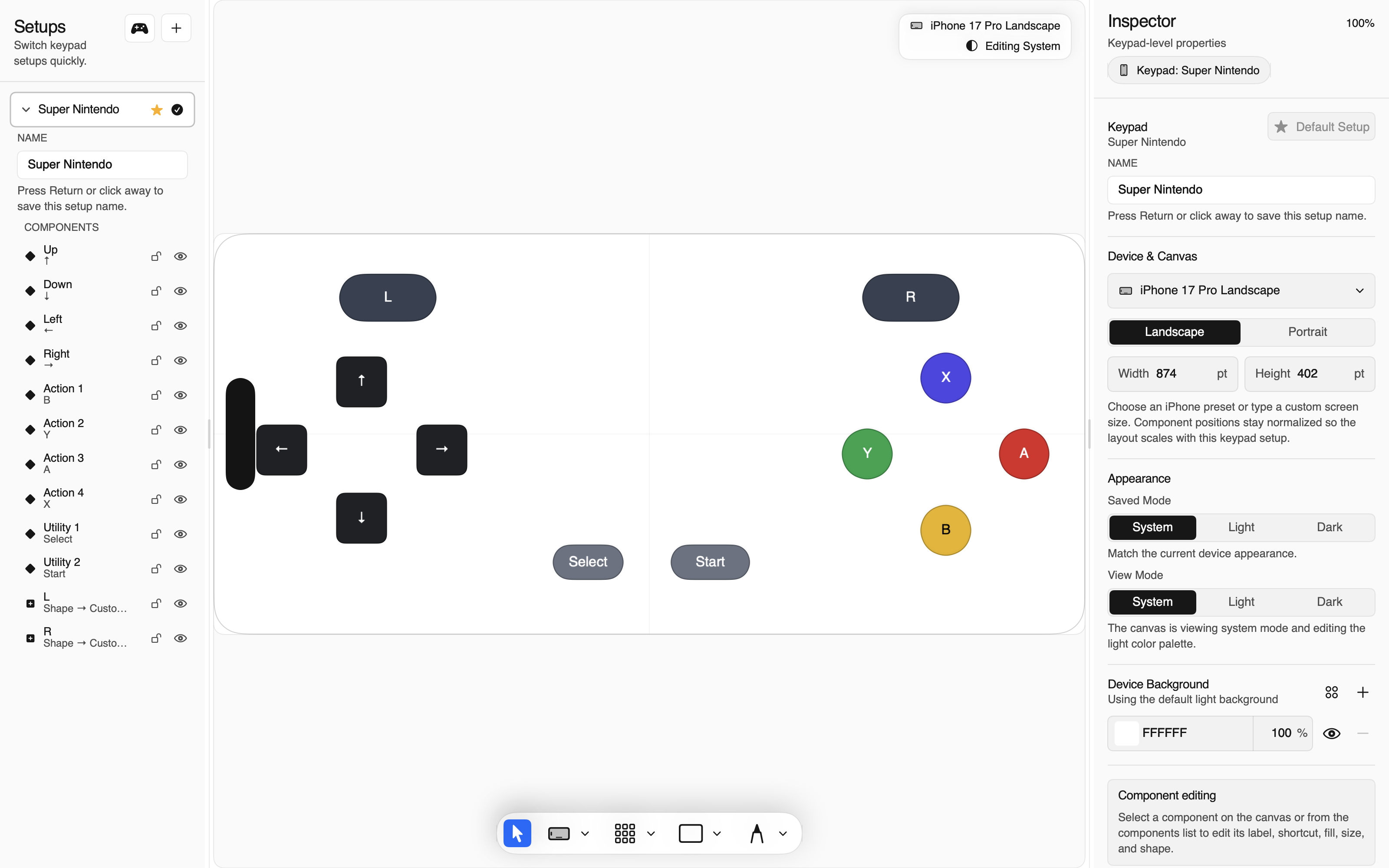
Connection screen and controller screen
The iOS app starts on a connection screen unless it can reconnect to a trusted Mac or show a saved keypad offline.
Connection screen
Use Smart Connect for remembered Macs, scan a Mac QR code for first-time pairing, or manually enter host and port. You can also view the last synced keypad when offline.
Controller screen
The top bar shows connection status, the active keypad setup, edit lock, haptics and appearance settings, export actions, and Disconnect. Swipe down from the top edge if the bar is hidden.
Offline saved keypad
After a successful sync, iPhone can display saved profiles even when Thumble Mac is closed. Input only controls the Mac while connected.
editor
Build a keypad setup
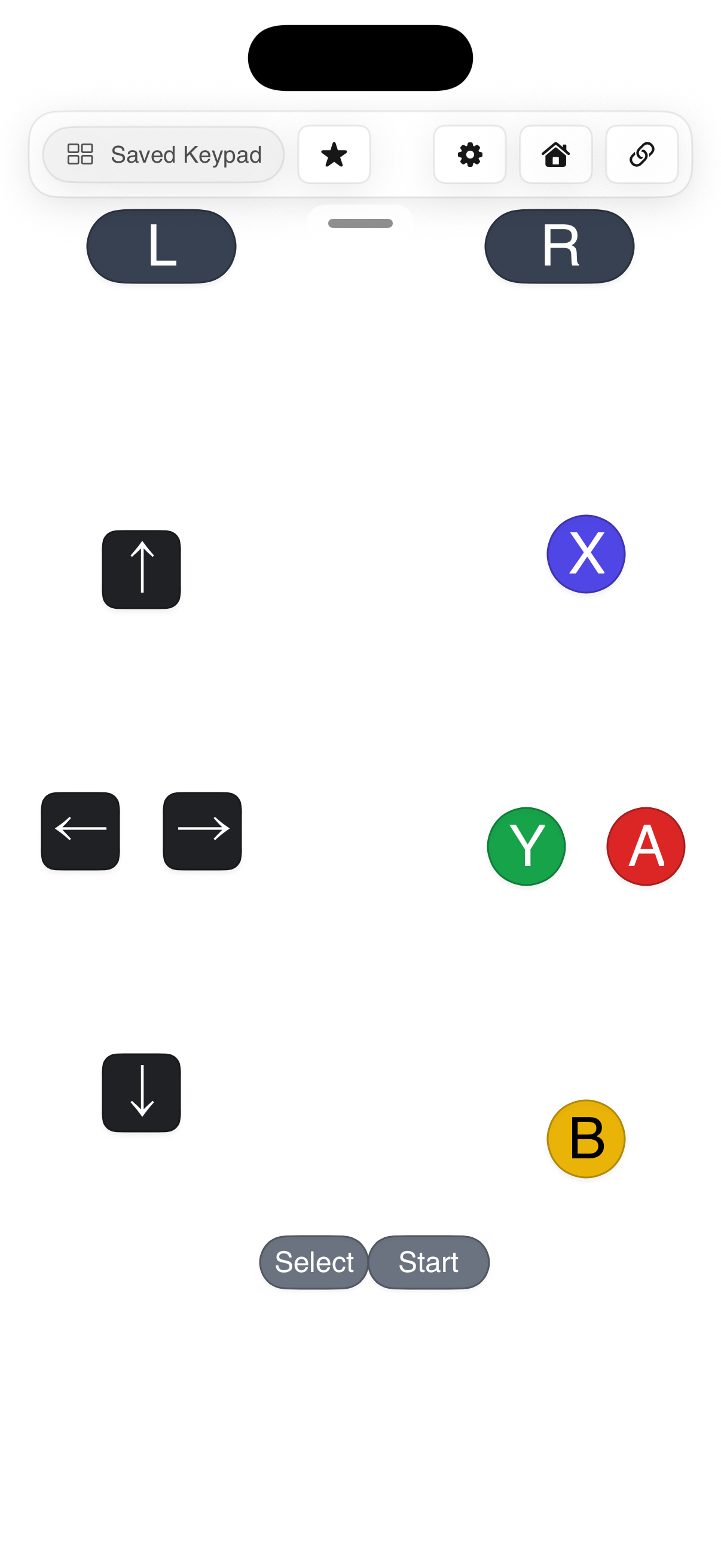
A setup is a saved profile containing layout, output mode, bindings, colors, haptics, style tokens, assets, and per-orientation variants. Edits on Mac save automatically and sync to the paired iPhone.
Setups and templates
Create, duplicate, delete, switch, import, export, and mark defaults. The active setup is sent to the iPhone and can be changed from either device.
Device frames
Match the editor to the connected iPhone, choose any supported iPhone display class, or use a custom canvas size. Portrait and landscape variants are saved separately.
Controls and grid
Add buttons, joysticks, triggers, and trackpads. Drag on the canvas, nudge, align, distribute, layer, group, and use snap/grid preferences for precision.
Styles and haptics
Customize fills, strokes, pressed states, icons, glows, reusable style tokens, background fills, gradients, image fills, and per-control haptic patterns.
Typical editor workflow
- Choose a setup.
Start from the default keypad, install a template, or generate/import a profile.
- Pick the device canvas.
Use the connected iPhone frame or choose a model and orientation manually.
- Place controls.
Add controls, resize them, and test hit targets with the preview.
- Record outputs.
Select a control, click the shortcut field, press the desired Mac keystroke sequence, and pause to save.
- Sync and test.
Connect the iPhone, focus the target Mac app, and press controls. Use Release All if you change apps mid-press.
skins
Browse, install, and create visual themes
Thumble skins are shareable .pocketpad packages for appearance only. They can style backgrounds, native controls, icons, materials, pressed states, light/dark modes, and portrait/landscape variants. They cannot replace your geometry, labels, keyboard shortcuts, controller bindings, pointer actions, launch targets, or accessibility.
Install from the directory
Open the Skin Directory, preview a theme, and tap Install. On iPhone, choose Thumble in the Share Sheet. On Mac, download the package and choose Import Skin from the Skins library.
Nothing applies silently
Thumble validates the archive and shows its creator, license, warnings, and visual preview before installation. Install stores it in your library; Install & Apply adds it to the selected keypad.
Keep local overrides
Apply a skin as-is, customize its appearance while retaining a package reference, or fork the current result into a fully local look. Detaching never changes bindings.
Available on both devices
Installed packages and required assets sync between trusted Mac and iPhone peers. Offline copies remain available for saved keypads and reconnect safely.
Create a directory-ready skin
Copy the starter under docs/skins/starter, give it a unique reverse-DNS identifier and semantic version, then use semantic roles such as movement, primary_action, menu, and trackpad instead of profile UUIDs.
cp -R docs/skins/starter MySkin
thumble skin validate MySkin
thumble skin pack MySkin -o MySkin.pocketpad
thumble skin validate MySkin.pocketpad --strict
thumble skin render MySkin.pocketpad --clean -o preview.png
Packages submitted to the public directory must pass strict validation, include a preview and license, use declared assets with SHA-256 hashes, and contain no executable files or profile bindings. See the repository’s complete format and security guide.
outputs
Keyboard, pointer, and controller output
Thumble can send multiple kinds of output depending on the selected profile and binding.
Shortcut recording tips
- Press Control + B to save a modifier combo like
⌃B. - Press a combo, release it, then press another key to create prefix sequences such as
⌃B H. - Modifier-only shortcuts save when you press and release the modifier key.
- Use Default for one control or Reset All to restore starter bindings.
cli
Script Thumble with thumble
The CLI mirrors the saved-configuration features in the Mac Keypad editor and adds runtime helper commands for automation and debugging. Existing automation can continue using the thumbconsole and pocketpad compatibility executables.
If thumble is not already on PATH, build it from a source checkout to a predictable location:
xcodebuild -project Thumble.xcodeproj \
  -scheme ThumbleCLI \
  -destination 'platform=macOS' \
  -derivedDataPath build/DerivedData build
export PATH="$PWD/build/DerivedData/Build/Products/Debug:$PATH"
thumble --help
thumble profile list --ids
thumble template list
thumble template install snes --name "SNES Browser Controls" --default
thumble profile export --all -o thumble-profiles.json
thumble profile import thumble-profiles.json
thumble skin list
thumble skin import Aurora.pocketpad
thumble skin apply com.example.pocketpad.skin.aurora --profile active
thumble binding set focus --sequence 'Control+B,H'
thumble output mode keyboard
thumble element add joystick --label "Right Stick" --up custom1 --down custom2 --left custom3 --right custom4
thumble element set jump --label A --shape circle --width 1.2 --height 1.2Runtime helper commands
thumble app open
thumble app screenshot -o /tmp/thumble-window.png --json
thumble status --json
thumble server restart
thumble pairing payload
thumble accessibility status
thumble test tap jump
thumble release-all
When Thumble Mac is running, CLI profile, customization, and binding changes are pushed to the app via distributed notifications and then synced to the paired iPhone. app screenshot captures only the largest visible Thumble window without activating the app or sending input events; it requires Screen Recording access for the terminal or agent host.
ai agents
Tell an agent what you want, not how to click
Thumble includes a repository SKILL.md for terminal-capable agents. It explains how to choose between game generation, templates, targeted profile editing, layout repair, skin operations, and runtime diagnostics while avoiding unsafe UI automation.
Give it the skill
Tell the agent to read the local SKILL.md, or install that file in the skill directory supported by your agent host.
Describe the result
Name the game or app, important controls, preferred orientation, and whether the agent may install, select, or default the profile.
Require verification
Ask for a dry-run or preview, layout validation, final bindings, confidence/source, and confirmation of what actually synced.
Copy this starter prompt
Read /absolute/path/to/Thumble/SKILL.md, then use the
thumble CLI to create a landscape keypad for Celeste.
Research the default Mac keyboard controls, inspect my profiles,
and dry-run before installing. Preserve unrelated profiles,
validate the final layout, and report the source, confidence,
bindings, whether it became selected/default, and whether sync
could be confirmed. Do not use UI automation.
The reliable agent loop
- Inspect.
Run
profile list,profile show active --json, andstatus --jsonbefore editing. - Preview.
Use
generate --dry-run,layout validate, andlayout previewwhen available. - Apply.
Make only the requested profile, binding, output, layout, or skin changes. Generation selects and defaults a profile unless the agent passes
--no-selector--no-default. - Verify.
Re-read the saved profile and bindings, rerun layout checks, and distinguish saved configuration from confirmed iPhone sync or physical-device feel.
Safe boundaries to include
- Use the CLI instead of clicking through the Mac or iPhone UI.
- Use
thumble app screenshotfor visual checks; do not activate the app or send keyboard/mouse events. - Ask before launching apps, opening System Settings, triggering permission prompts, restarting the server, or sending test input.
- Treat
test tap|down|upas real output to the currently focused Mac app, and userelease-allif a test is interrupted. - Inspect before deleting/resetting profiles, removing skins, clearing bindings, or replacing output modes. Export all profiles before a broad migration or reset.
- For handcrafted community skins, require editable source, native-rendered review evidence, independent critique/QA, and explicit human approval before publication.
See the complete Using Thumble with an AI agent guide for reusable instruction-file snippets and copy-paste prompts for games, productivity pads, layout repair, diagnostics, and skin installation. For chatting with ChatGPT or Claude instead of driving a local terminal agent, see Build Mac controllers by chatting.
troubleshooting
Fix common setup issues
Smart Connect does not find my Mac
Make sure Thumble Mac is running, Local Network permission is allowed, and both devices are on the same Wi‑Fi network or have Wi‑Fi/Bluetooth enabled nearby for peer-to-peer. Use QR pairing as a fallback.
QR pairing fails
Confirm the iPhone camera permission is allowed. If the code still fails, manually enter one of the Mac helper's ws:// addresses and use the six-digit code shown on Mac.
Buttons press but nothing happens on Mac
Re-check Accessibility permission for Thumble Mac, then refresh the permission status in the app. Also confirm the target Mac app is focused.
A key feels stuck
Tap Release All in the iPhone settings menu, the Mac Home quick actions, or run thumble release-all. Thumble also releases held keys on disconnect, server stop, app background, and heartbeat timeout.
The virtual gamepad does not appear in games
Keyboard and pointer output work in normal builds. System-visible virtual controller output requires the app to be signed with Apple's com.apple.developer.hid.virtual.device entitlement.
safety
Local, authenticated, and recoverable input
- Pairing uses a six-digit setup challenge and trusted reconnect token.
- Input travels over the local network or nearby peer-to-peer; Smart Connect advertises as
_pocketpad._tcp. - Button state transitions use compact authenticated UDP frames with WebSocket mirroring for recovery.
- macOS releases held keys after heartbeat timeout, disconnect, server stop, manual Release All, and app quit.
- iOS sends a best-effort Release All when disconnecting, backgrounding, or becoming inactive.
faq
Frequently asked questions
Is Thumble only for games?
No. It works well for games, but it is also useful for terminal shortcuts, tmux prefixes, Cursor commands, window management, browser actions, and any Mac app that accepts keyboard or pointer input.
Can I use it without the Mac app open?
The iPhone can view saved keypads offline, but controlling the Mac requires Thumble Mac to be running and connected.
Can I back up my layouts?
Yes. In Thumble Mac, open the Keypad editor's Export menu and export the current setup or all setups as JSON. You can also export from iPhone or use thumble profile export --all from the CLI. Imports use the same versioned Thumble keypad configuration envelope.
Can I make game-specific profiles?
Yes. Install templates, generate a profile from a known game, or create an agent-provided JSON spec and import it with the CLI.
Can a downloaded skin change what my buttons do?
No. Skin packages are appearance-only. Thumble rejects profile content and executable assets, and applying a skin preserves your local geometry, labels, bindings, launch targets, and accessibility.